How to Embed Google Calendar on Your Shopify Store: An Easy Guide
Looking to add your Google Calendar to your Shopify store? Whether you want to display your business hours, upcoming events, or allow customers to see your availability, embedding a Google Calendar can make your store more functional and user-friendly.
Why Embed Google Calendar on Your Shopify Store?
- Show business hours or opening times
- Display upcoming events, classes, or workshops
- Let customers see your availability in real-time
- Keep your store and calendar in sync automatically
Step-by-Step Guide to Embedding Google Calendar
Step 1: Install EmbedAny App
First, you’ll need to install the EmbedAny app on your Shopify store:
- Visit EmbedAny in the Shopify App Store
- Click “Add app” and follow the installation process
- Activate the app on your store
Step 2: Get Your Google Calendar Link
- Open your Google Calendar
- Click the three dots next to your calendar name in the left sidebar
- Select “Settings and sharing”
- Scroll down to “Integrate calendar”
- Copy the “Public URL to this calendar” link
Step 3: Add the Calendar to Your Shopify Store
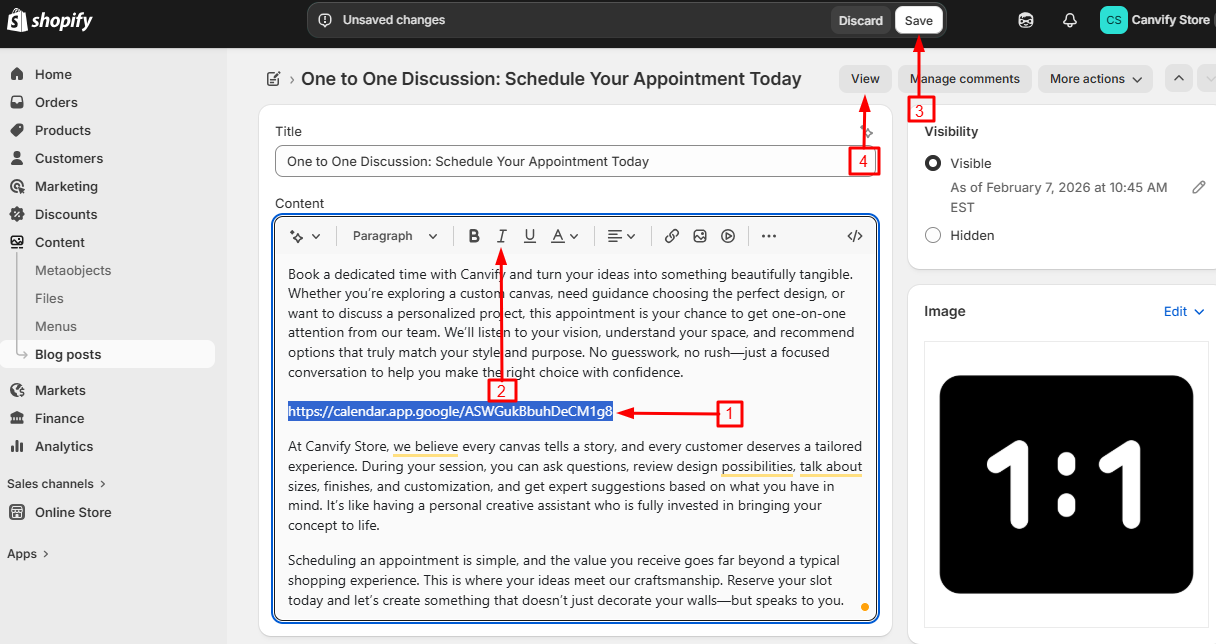
- Go to the page where you want to add your calendar (product description, about page, etc.)
- Open the rich text editor
- Paste your Google Calendar link
- Highlight the link and click the italic button (or use the keyboard shortcut Ctrl+I / Cmd+I)
- Save your changes
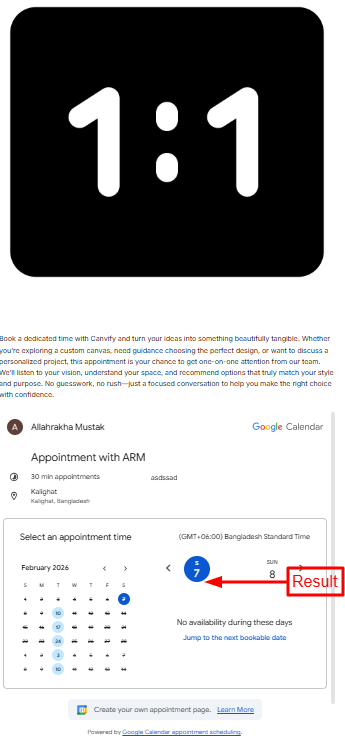
That’s it! EmbedAny will automatically convert your italicised link into an interactive Google Calendar that customers can view directly on your page.
Tips for Using Google Calendar on Your Store
- Appointment Booking: Create a dedicated page for appointment bookings with your embedded calendar
- Event Calendar: Showcase upcoming sales, workshops, or in-store events
- Business Hours: Display your opening hours in a visual, easy-to-understand format
- Class Schedule: If you offer classes or services, show availability directly on product pages
Troubleshooting
If your calendar isn’t displaying properly:
- Make sure your Google Calendar is set to public or properly shared
- Check that you’ve italicised the entire link
- Verify that EmbedAny is properly installed and activated
Adding a Google Calendar to your Shopify store is a brilliant way to enhance the customer experience and provide valuable information without sending visitors away from your site. With EmbedAny, the process is quick and simple, requiring no technical knowledge or coding.