How to Embed Google Drive Files on Your Shopify Store | EmbedAny Guide
Are you looking to share Google Drive files directly on your Shopify store? Whether it’s a product manual, size chart or important document for your customers, embedding Google Drive content can make your Shopify store more informative and useful. Here’s how to do it with EmbedAny.
Step 1: Install EmbedAny on Your Shopify Store
Before you can embed Google Drive files, you’ll need to install the EmbedAny app:
- Visit EmbedAny in the Shopify App Store
- Click “Add app” and follow the installation prompts
- Once installed, the app will be activated automatically
Step 2: Prepare Your Google Drive File
For Google Drive embedding to work properly:
- Make sure your Google Drive file is set to “Anyone with the link can view”
- Copy the sharing link of your Google Drive file (docs or slides)
Step 3: Add Your Google Drive File to Shopify
Now that you have your Google Drive link:
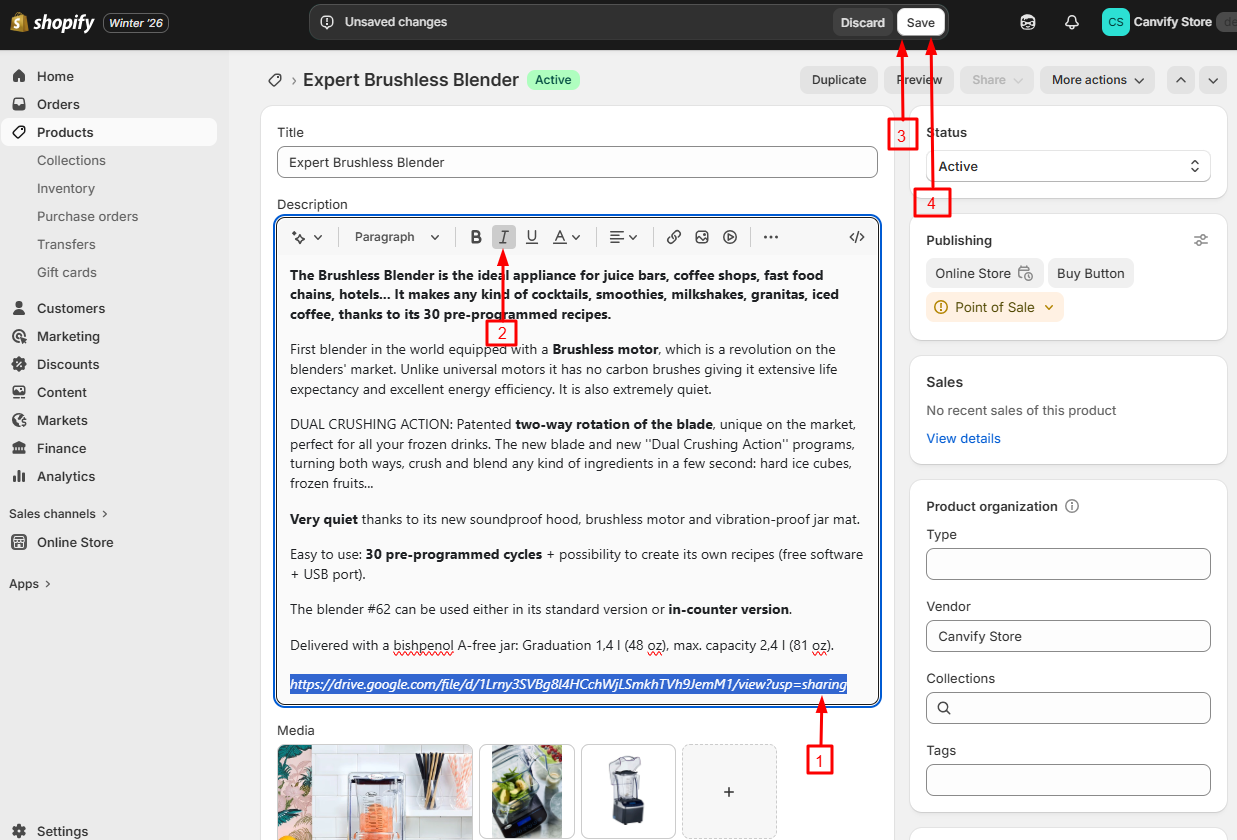
- Go to the page, product, or section where you want to embed your file
- Open the rich text editor in Shopify admin
- Paste your Google Drive link into the editor
- Highlight the link and click the italic button (or use the keyboard shortcut Ctrl+I / Cmd+I)
- Save your changes
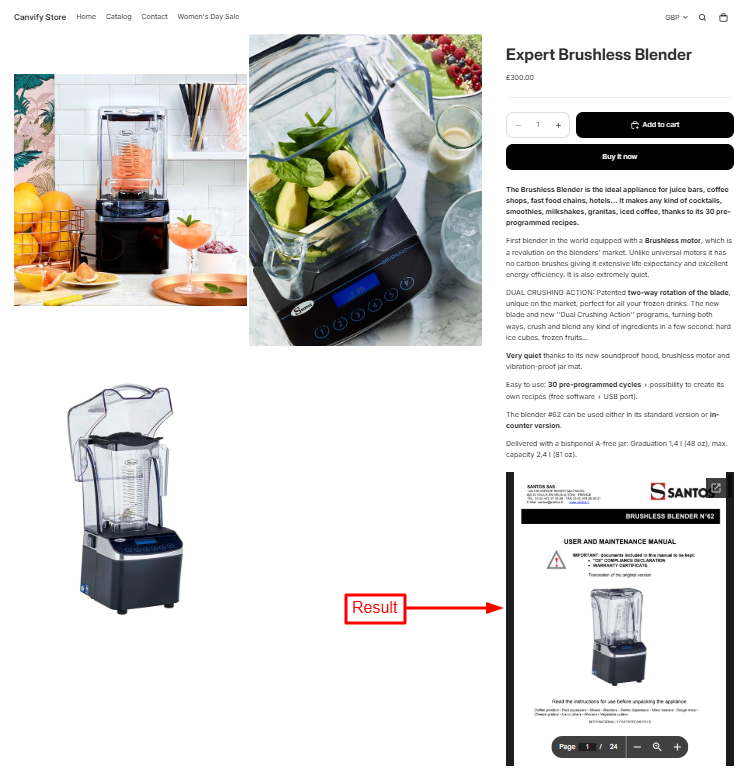
That’s it! Your Google Drive document, spreadsheet, or presentation will now appear directly on your Shopify page. Customers can view and interact with it without leaving your store.
Examples of Google Drive Content You Can Embed
- Product documentation - Share detailed product manuals
- Presentations - Show product demonstrations or company information
- PDF files - Share catalogues, lookbooks or instructions
Tips for Better Google Drive Embeds
- Keep file names descriptive for better SEO
- Use Google Drive folders to organise collections of downloadable files
- Consider the viewing experience on mobile devices
Troubleshooting
If your Google Drive embed isn’t appearing:
- Confirm your file sharing settings are set to “Anyone with the link can view”
- Make sure you’ve italicised the entire link
- Check that EmbedAny is properly installed and activated
- Try refreshing your store’s cache
By embedding Google Drive files directly on your Shopify store, you’re creating a more useful shopping experience while keeping customers on your site longer. EmbedAny makes this process simple, with no coding required.