Embed Google Maps on Your Shopify Store - Quick Guide
Looking to add a Google Maps to your Shopify store? Whether you want to display your physical shop location, delivery zones, or meeting spots, an interactive map can help customers find you faster. Here’s how to do it using EmbedAny.
Why Add Google Maps to Your Shopify Store?
Adding a Google Map to your shop can:
- Show customers your physical location
- Display multiple branch locations
- Highlight delivery or service areas
- Make your store look more professional
- Help customers plan their visit
Step-by-Step Guide to Embedding Google Maps
1. Install EmbedAny on Your Store
First, install the EmbedAny app from the Shopify App Store. Once installed, activate it on your store.
2. Find Your Google Maps Link
You need to get the right Google Maps link:
- Go to Google Maps
- Search for your location
- Click “Share” button
- Choose “Copy link” to copy the URL
You’ll get something like: https://goo.gl/maps/aBcXyZ123... or https://www.google.com/maps?q=...
3. Add the Map to Your Shopify Store
Now comes the magic part:
- Go to your Shopify admin
- Navigate to the page, product, or blog post where you want to add the map
- Paste your Google Maps link into the text
- Important: Make the link italic by selecting it and using the italic button or Ctrl+I (Cmd+I on Mac)
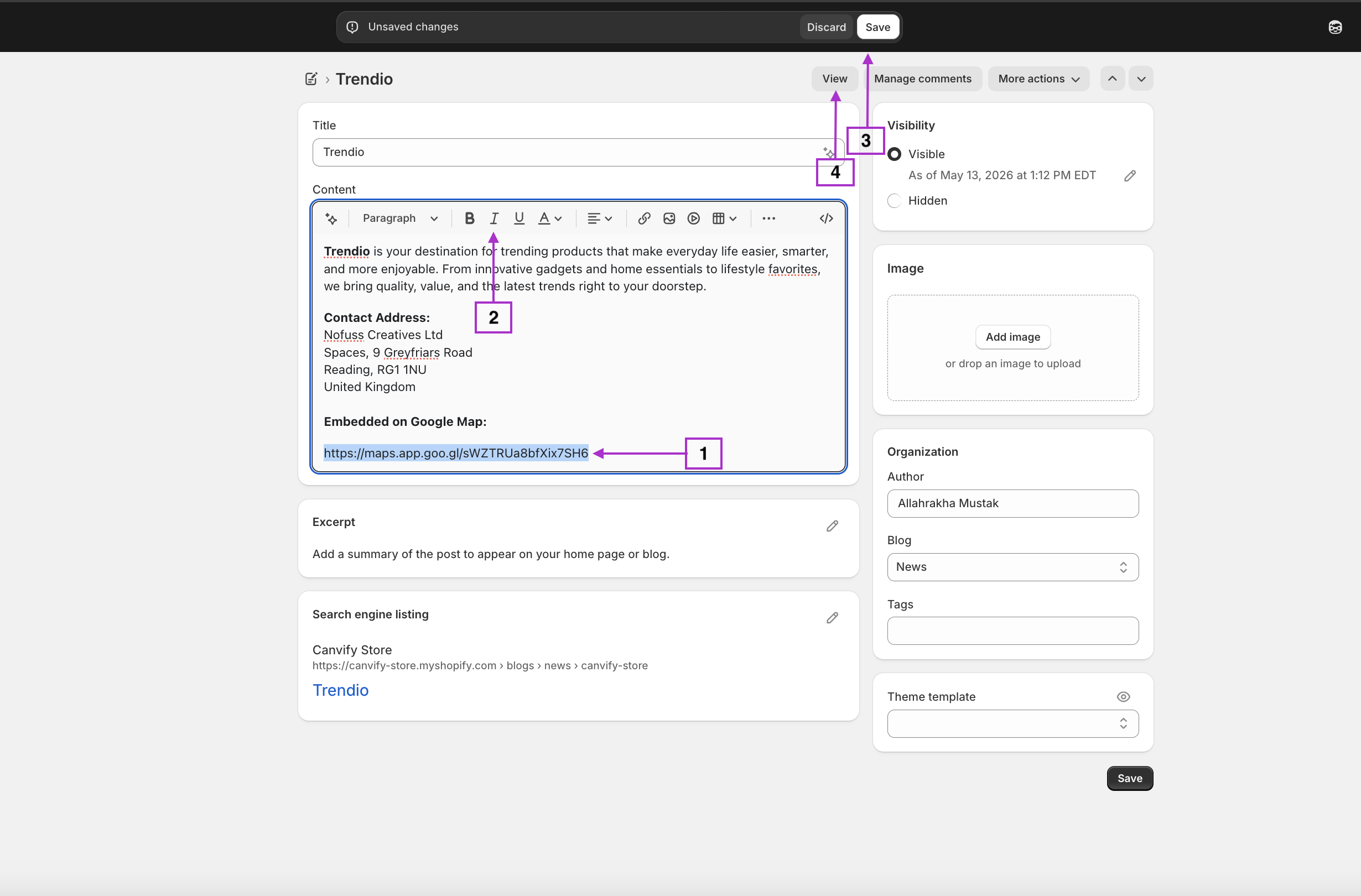
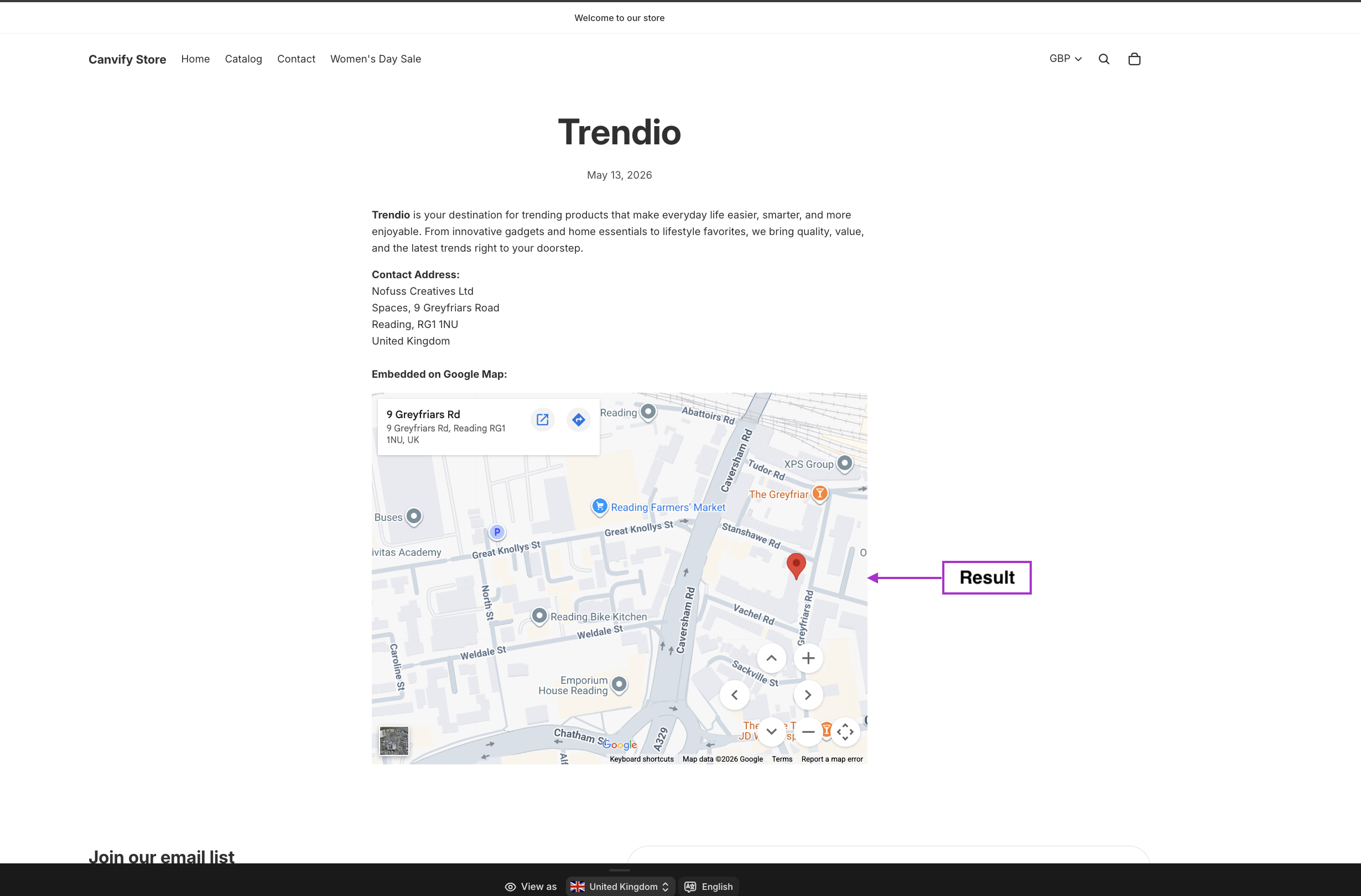
That’s it! Once you save and publish, your Google Maps link will transform into an interactive map that customers can use right on your page.
Where to Add Google Maps on Your Store
Google Maps work brilliantly in:
- Contact pages - show your shop’s physical location
- About us pages - highlight your journey or multiple locations
- Product pages - show where products are made
- Delivery information - illustrate shipping zones
Customisation Tips
- The map will automatically resize to fit your page layout
- For a larger map, place the link on its own line
- For a smaller map, place it within text
Example
If you paste and italicise this link:
https://www.google.com/maps?q=buckingham+palace
It will transform into an interactive Google Map showing Buckingham Palace that your visitors can zoom, pan and explore without leaving your store.
Now you’ve learned how to easily add Google Maps to your Shopify store without any coding or technical skills!