How to Embed Vimeo Videos on Shopify: A Simple Guide Using EmbedAny
Why Embed Vimeo Videos on Your Shopify Store?
Vimeo videos can significantly enhance your Shopify store by showcasing product demonstrations, tutorials, or brand stories. Videos increase engagement and can boost conversion rates by helping customers better understand your products.
Step 1: Install the EmbedAny App
Before embedding Vimeo videos, you’ll need to install the EmbedAny app:
- Visit EmbedAny on the Shopify App Store
- Click “Add app” and follow the installation prompts
- Complete the activation process within your Shopify admin
Step 2: Find Your Vimeo Video
- Go to the Vimeo video you want to embed
- Click the “Share” button beneath the video
- Copy the video link (it should look something like
https://vimeo.com/123456789)
Step 3: Embed the Vimeo Video on Your Store
Now for the magic part:
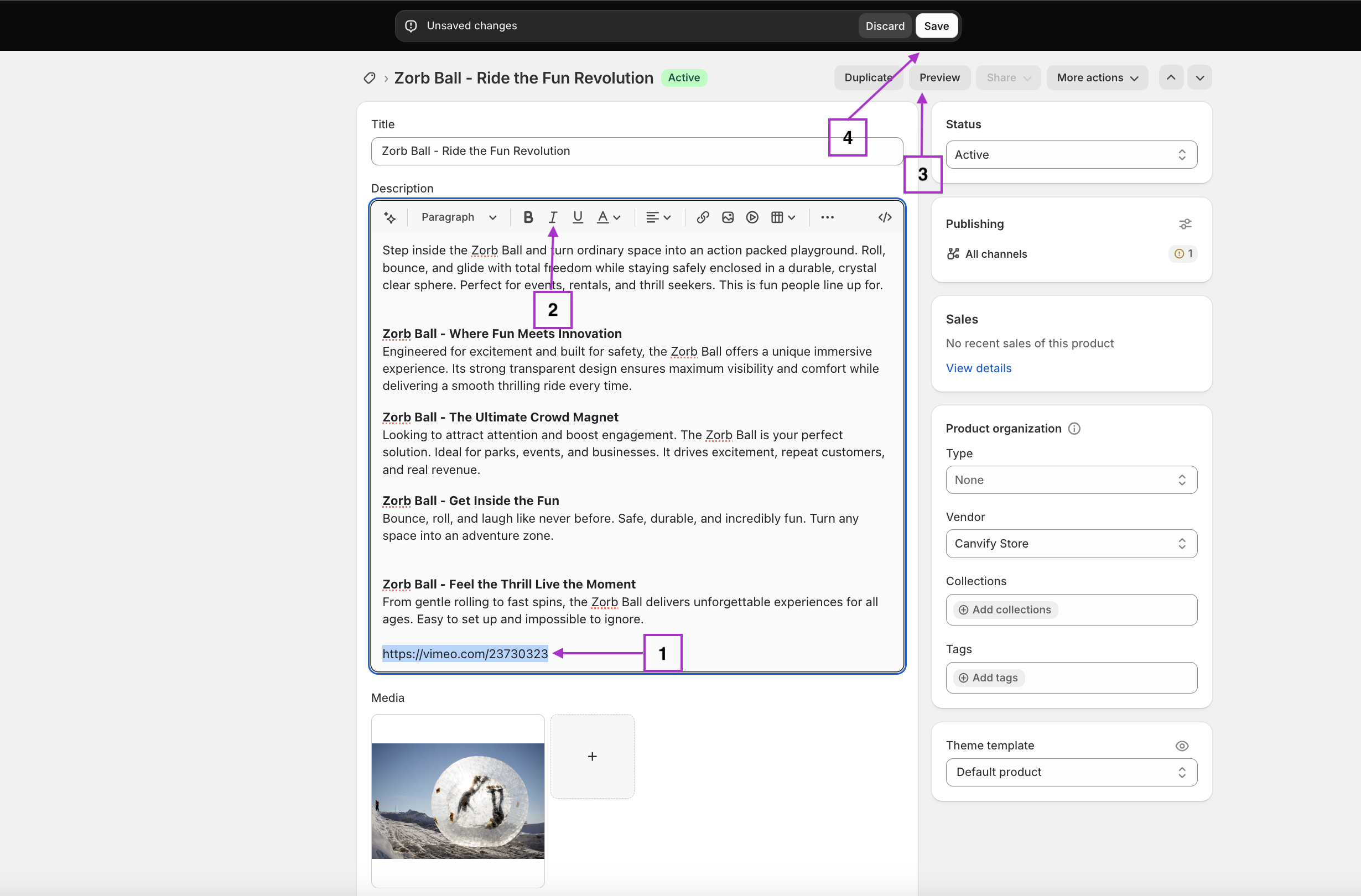
- Navigate to where you want to add the video (product description, page, blog post, etc.)
- Paste the Vimeo link you copied
- Important step: Make the link italic by selecting it and clicking the italic button (or using keyboard shortcut Ctrl+I / Cmd+I)
- Save your changes
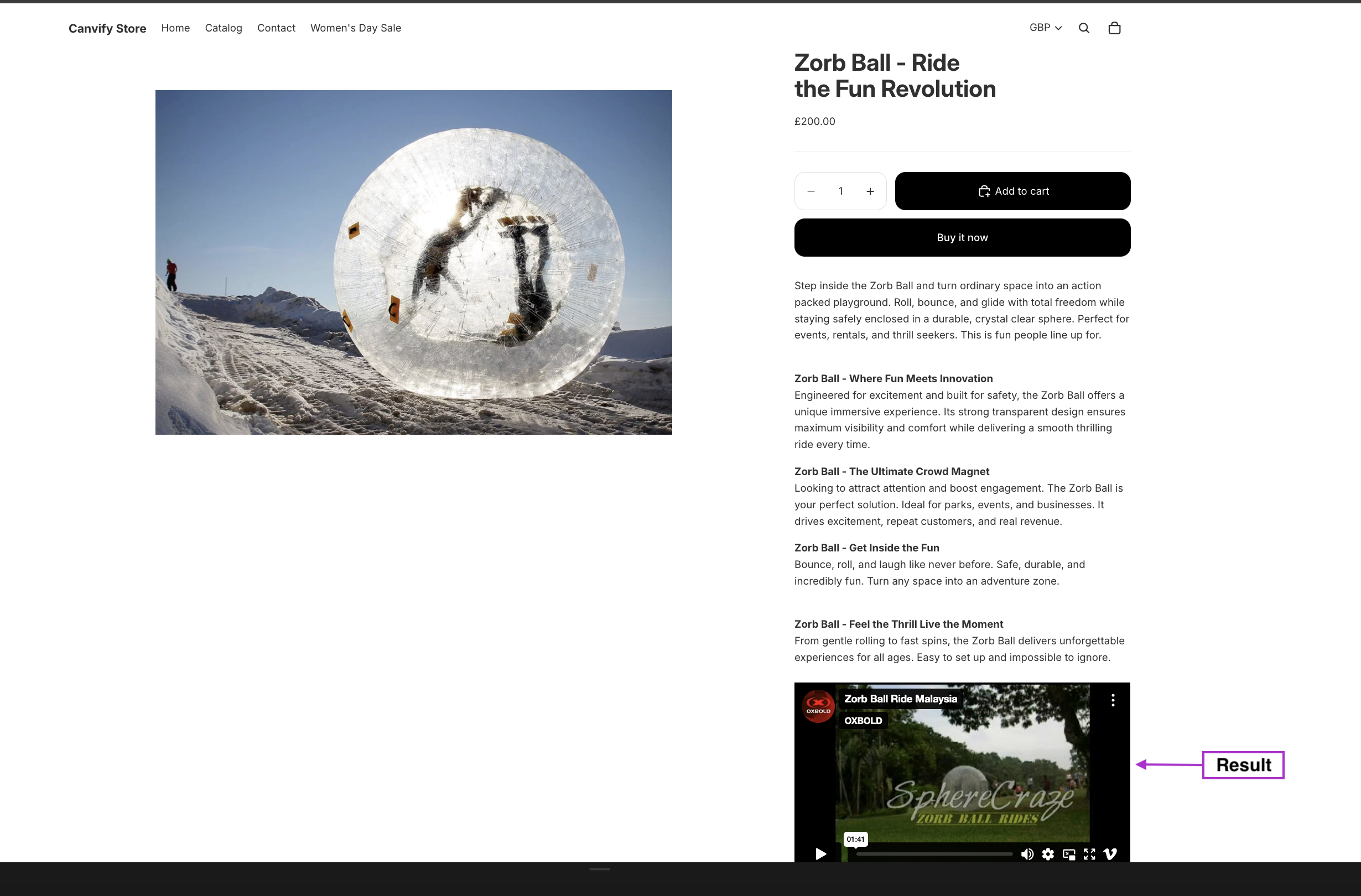
That’s it! EmbedAny will automatically convert your italicised Vimeo link into an interactive video player.
Where to Use Vimeo Videos in Your Shopify Store
- Product descriptions: Show your product in action
- About page: Share your brand story or behind-the-scenes footage
- Blog posts: Enhance written content with relevant videos
- Homepage: Feature promotional videos that capture attention
Tips for Using Vimeo Videos Effectively
- Keep videos concise and focused on a single topic
- Ensure your videos have clear sound and good lighting
- Add captions to make videos accessible to all customers
- Choose an appealing thumbnail that entices customers to watch
Troubleshooting
If your Vimeo video isn’t displaying correctly:
- Check that you’ve italicised the entire link
- Ensure the link is a direct Vimeo URL
- Verify that EmbedAny is properly activated in your store
- Try refreshing your store’s cache
By following these simple steps, you can easily add engaging Vimeo content throughout your Shopify store without any technical knowledge. This helps create a more dynamic shopping experience for your customers while showcasing your products in the best possible light.