How to Embed Spotify on Shopify: The Ultimate Guide (2026)
Are you looking to showcase your favourite music or branded playlists on your Shopify store? Adding Spotify content to your Shopify pages can enhance your customer experience, set the mood for your brand, and even increase time spent on your site. This guide will show you the simplest way to embed Spotify content on your Shopify store in seconds.
Why Embed Spotify on Your Shopify Store?
Spotify embeds can be incredibly useful for various types of Shopify stores:
- Music-related shops can showcase featured artists
- Fashion stores can set the mood with curated playlists
- Lifestyle brands can share music that reflects their ethos
- Product pages can include themed playlists that complement the merchandise
Step-by-Step Guide to Embedding Spotify on Shopify
Step 1: Install EmbedAny on Your Shopify Store
First, you’ll need to install the EmbedAny app from the Shopify App Store:
- Visit EmbedAny on the Shopify App Store
- Click “Add app” and follow the installation instructions
- Once installed, the app will be automatically activated on your store
Step 2: Find the Spotify Content You Want to Embed
- Open Spotify and find the track, album, playlist, or artist profile you want to embed
- Click the three dots (⋯) next to the content
- Select “Share” and then “Copy link” to copy the Spotify URL to your clipboard
Step 3: Add the Spotify Link to Your Shopify Store
- Go to your Shopify admin and navigate to the page, product, or blog post where you want to add Spotify content
- Open the rich text editor for the section you want to edit
- Paste the Spotify link you copied
- Highlight the link and click the italic button in the editor (or use the keyboard shortcut Ctrl+I / Cmd+I)
- Save your changes
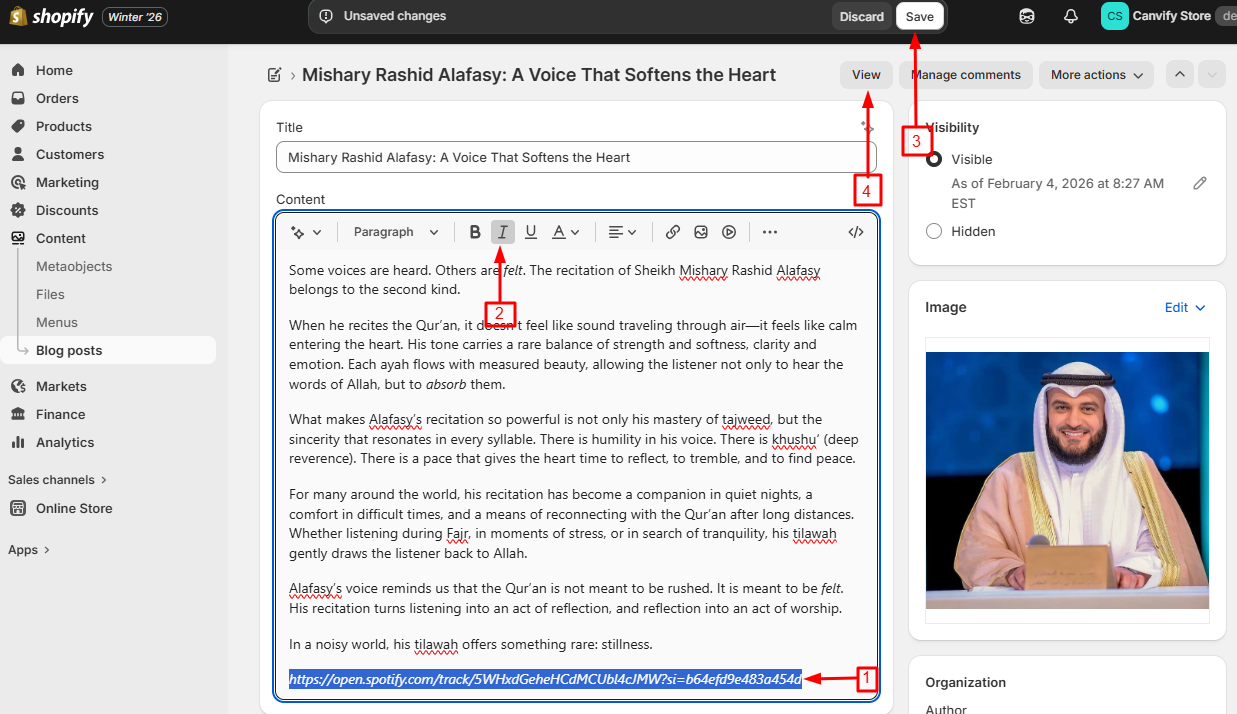
That’s it! EmbedAny will automatically transform your italicised Spotify link into an interactive Spotify player when your page loads.

Examples of Spotify Content You Can Embed
- Single tracks: Perfect for featuring a song of the week
- Full albums: Showcase new releases related to your products
- Playlists: Share curated collections that match your brand vibe
- Artist profiles: Highlight musicians you collaborate with
Tips for Using Spotify Embeds Effectively
- Place playlists on relevant collection pages to enhance the shopping atmosphere
- Add themed music to seasonal promotions
- Include your brand’s playlist in your “About Us” page
- Use music that matches the mood of your products
With EmbedAny, adding Spotify content to your Shopify store is as simple as pasting a link and making it italic. No coding knowledge required, no complicated setup – just paste, italicise, and your customers can enjoy interactive Spotify content without ever leaving your store.