How to Embed Miro Boards on Shopify: The Quick Guide
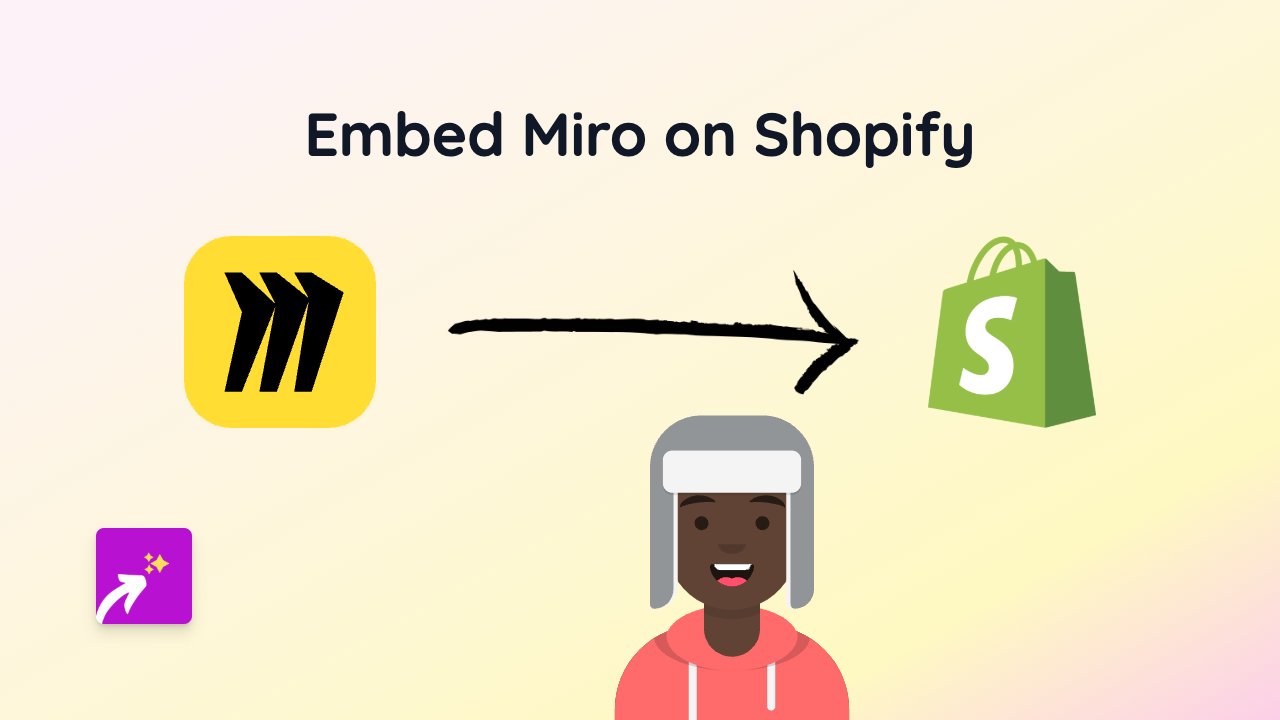
Want to share your Miro boards, mind maps, or diagrams directly on your Shopify store? Whether you’re showcasing project timelines, product roadmaps, or visual explanations for your customers, embedding Miro content can make your store more interactive and informative.
What You’ll Need
- A Shopify store
- The EmbedAny app installed
- A Miro board you want to share
Step 1: Install the EmbedAny App
- Visit the EmbedAny app page in the Shopify App Store
- Click “Add app” and follow the installation prompts
- Once installed, activate the app on your store
Step 2: Get Your Miro Board Link
- Open your Miro board
- Click the “Share” button in the top right corner
- Set the appropriate permissions (usually “Anyone with the link can view”)
- Copy the share link provided by Miro
Step 3: Add the Miro Board to Your Shopify Store
- Go to the page or product where you want to display the Miro board
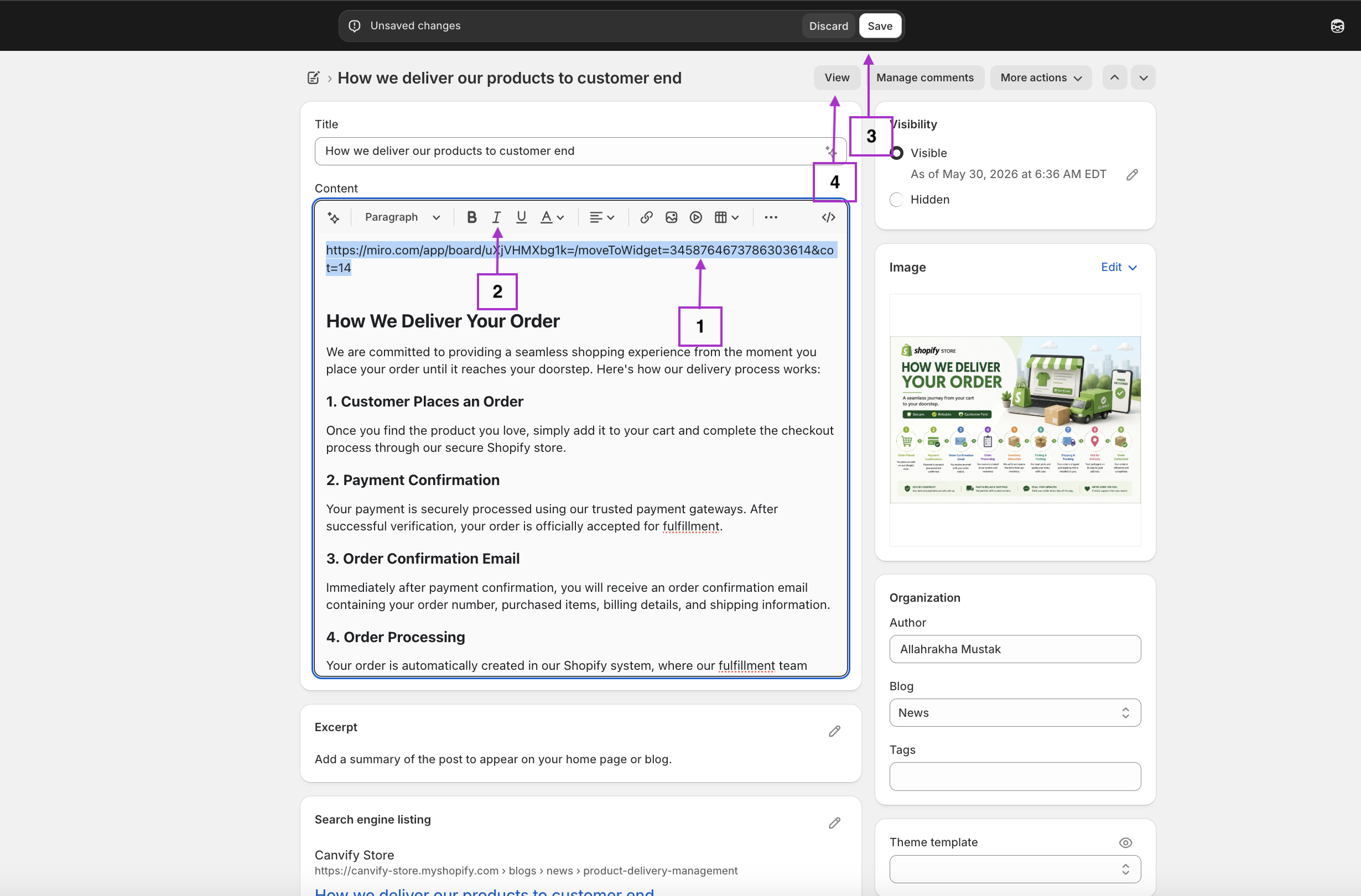
- In the text editor, paste your Miro link
- Important step: Highlight the entire link and make it italic (use the italic button or press Ctrl+I)
- Save your changes
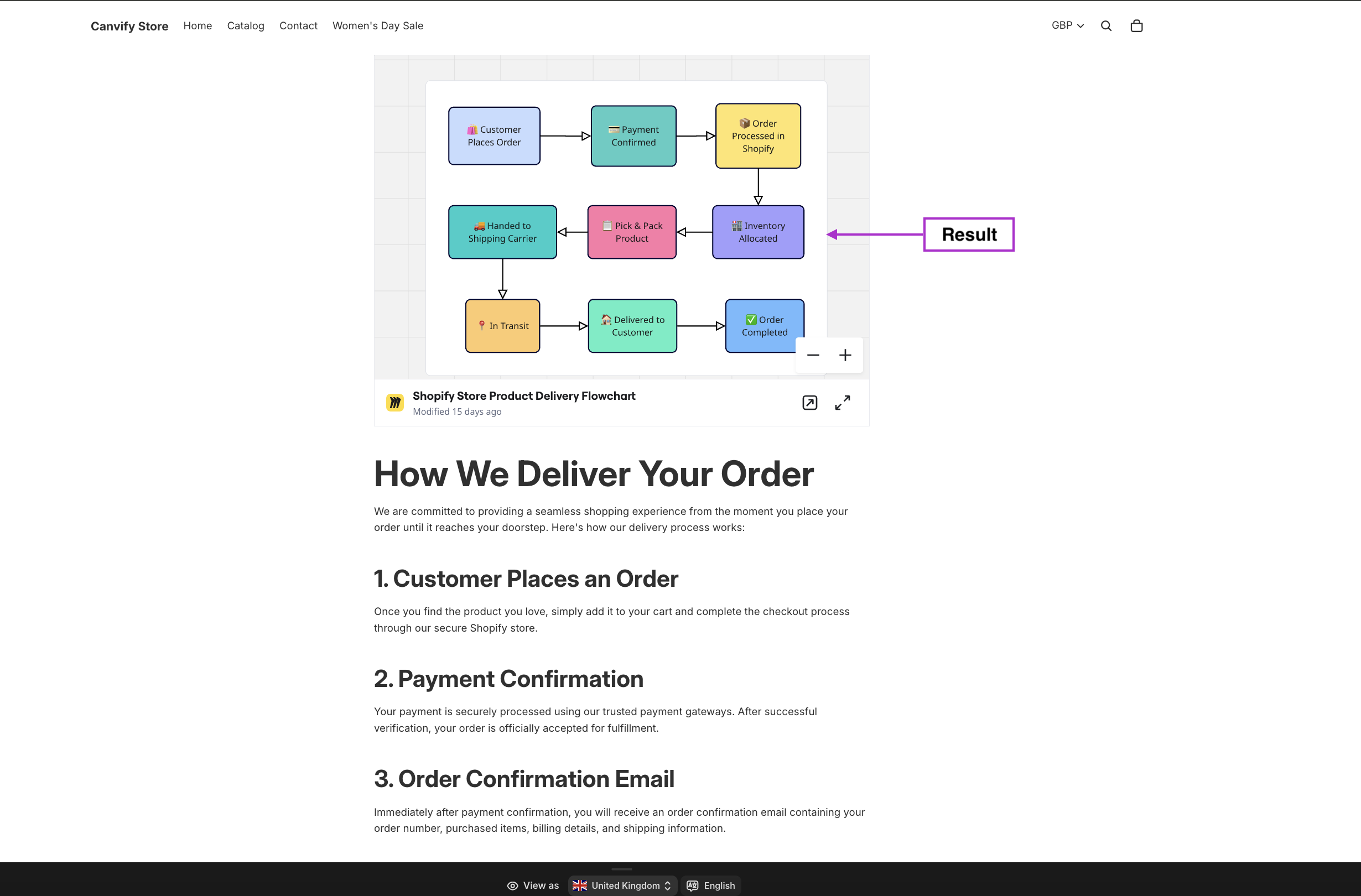
That’s it! Your Miro board will now appear as an interactive element on your page.
Where to Use Miro Boards on Your Shopify Store
- Product pages: Show detailed product specifications or assembly instructions
- About Us page: Display company roadmaps or organisational charts
- Project portfolios: Showcase your design process or project planning
- Educational content: Share mind maps or visual explanations
- Customer onboarding: Provide visual guides for using your products
Tips for Best Results
- Ensure your Miro board is properly set up for public viewing
- Adjust the board to focus on the most relevant information
- Consider the mobile experience - not all detailed diagrams display well on smaller screens
- Use clear titles and descriptions around your embedded board
Troubleshooting
If your Miro board isn’t displaying properly:
- Check that you’ve made the entire link italic
- Verify your Miro sharing permissions
- Make sure you’ve copied the correct link format
With EmbedAny, you can bring your Miro boards to life on your Shopify store without any coding knowledge. This simple integration helps you create a more engaging shopping experience while providing valuable visual information to your customers.