How to Embed Expo Snack on Shopify: A Simple Guide for Store Owners
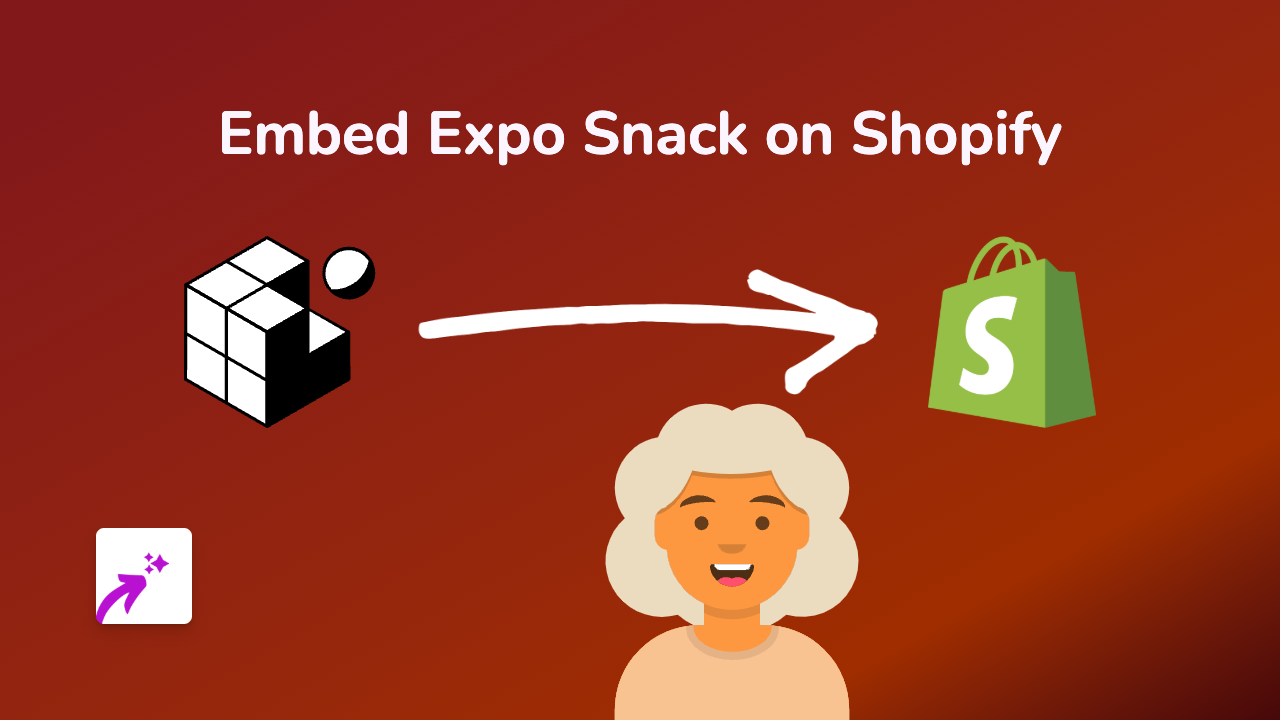
Embed Expo Snack on Your Shopify Store in 3 Simple Steps
Expo Snack is a fantastic tool for sharing React Native code examples in an interactive format. Adding these interactive code snippets to your Shopify store can be valuable if you’re selling coding courses, development tools, or want to showcase mobile app examples.
Here’s how to add Expo Snack embeds to your Shopify store without any technical hassle:
Step 1: Install EmbedAny App
First, you’ll need to install the EmbedAny app from the Shopify App Store:
- Visit https://apps.shopify.com/embed
- Click “Add app”
- Follow the installation prompts
- Activate the app when prompted
Step 2: Find Your Expo Snack Link
To embed an Expo Snack, you’ll need the link to the Snack you want to display:
- Go to snack.expo.dev
- Create or open an existing Snack project
- When your Snack is ready, copy the URL from your browser’s address bar
(It will look something like:
https://snack.expo.dev/@username/project-name)
Step 3: Add the Link to Your Store
Now, simply add the Expo Snack link anywhere you want it to appear:
- Go to the page or product where you want to add the Expo Snack
- Paste the Snack URL into your content editor
- Important step: Make the link italic by selecting it and clicking the italic button (or using Ctrl+I / Cmd+I)
- Save your changes
That’s it! The plain link will now transform into an interactive Expo Snack embed where customers can view and even play with the code example directly on your Shopify store.
When to Use Expo Snack Embeds
Expo Snack embeds can be particularly useful for:
- Showcasing mobile app examples if you sell development tools
- Displaying coding tutorials or examples in your product descriptions
- Adding interactive elements to coding course information
- Demonstrating how your app or development product works
Tips for Better Expo Snack Embeds
- Choose a good width-to-height ratio for your embed that works well on both mobile and desktop
- Use Expo Snack’s sharing options to start your embed at a specific file or code section
- Consider adding a brief text explanation above the embed to provide context
- Make sure your Snack project is public so visitors can view it properly
By following these simple steps, you can enhance your Shopify store with interactive Expo Snack embeds that engage visitors and provide valuable demonstrations of code examples—all without writing a single line of code yourself.