How to Embed Canva Designs on Your Shopify Store | Complete Guide

Canva has revolutionised design with its easy-to-use platform for creating stunning graphics, presentations, and more. Showcasing these designs directly on your Shopify store can significantly enhance your visual storytelling and engage customers. This guide shows you how to embed Canva content seamlessly on your Shopify store.
What You’ll Need
- A Shopify store
- A Canva account with designs you want to share
- EmbedAny app installed on your store
Step 1: Install EmbedAny on Your Shopify Store
- Visit the EmbedAny app page in the Shopify App Store
- Click “Add app” and follow the installation instructions
- Activate the app when prompted
Step 2: Get Your Canva Design Link
- Open Canva and navigate to the design you want to embed
- Click the “Share” button in the top-right corner
- Select “More…” and then “Embed”
- Copy the link provided (not the embed code - just the URL)
Step 3: Add the Canva Link to Your Shopify Store
- Go to the page or product where you want to display your Canva design
- Paste the Canva link into your content
- Important: Make the link italic by selecting it and clicking the italic button (or using keyboard shortcuts: Ctrl+I or Cmd+I)
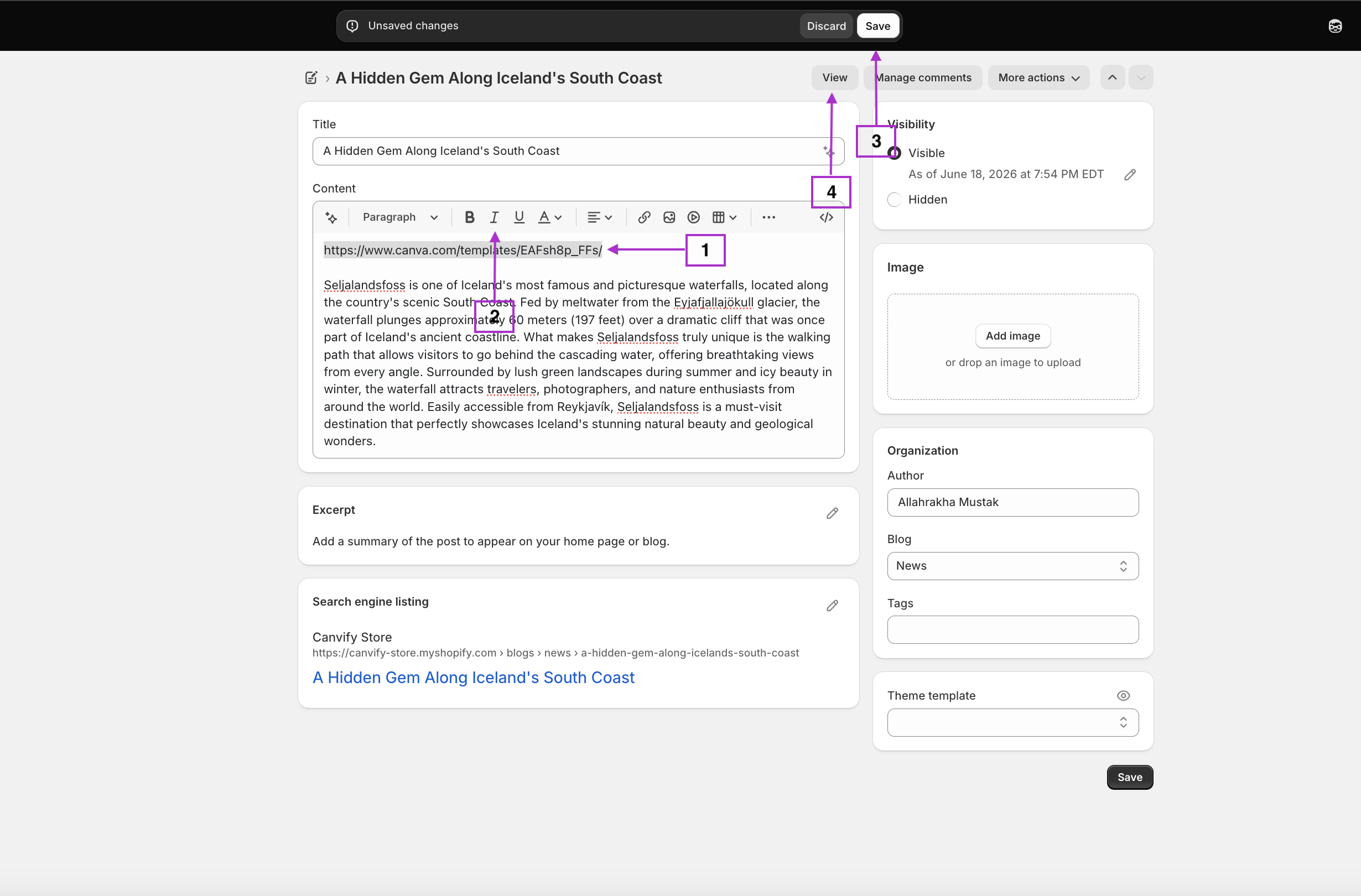
That’s it! EmbedAny automatically transforms your italic Canva link into an interactive, embedded Canva design.

Where to Use Canva Embeds on Your Shopify Store
- Product descriptions: Include design mockups or style guides
- About pages: Embed your brand story or company timeline presentations
- Blog posts: Add interactive infographics or visual data
- Landing pages: Showcase lookbooks or seasonal collections
Tips for Effective Canva Embeds
- Use responsive Canva designs that look good on both mobile and desktop
- Keep loading times in mind – simpler designs load faster
- Update your embedded Canva content regularly to keep your store fresh
- Use Canva embeds to complement your product images, not replace them
Examples of Canva Content to Embed
- Product size guides
- Care instructions
- Colour charts and swatches
- How-to guides or tutorials
- Customer testimonial showcases
- Before/after demonstrations
By embedding Canva designs on your Shopify store, you create a more dynamic shopping experience that helps customers visualise your products and understand your brand better. EmbedAny makes this process incredibly simple – no coding knowledge required.
Happy embedding!